The problem: two separate worlds
Developers spend the day in the editor. Project managers spend the day on the board. The two never meet.
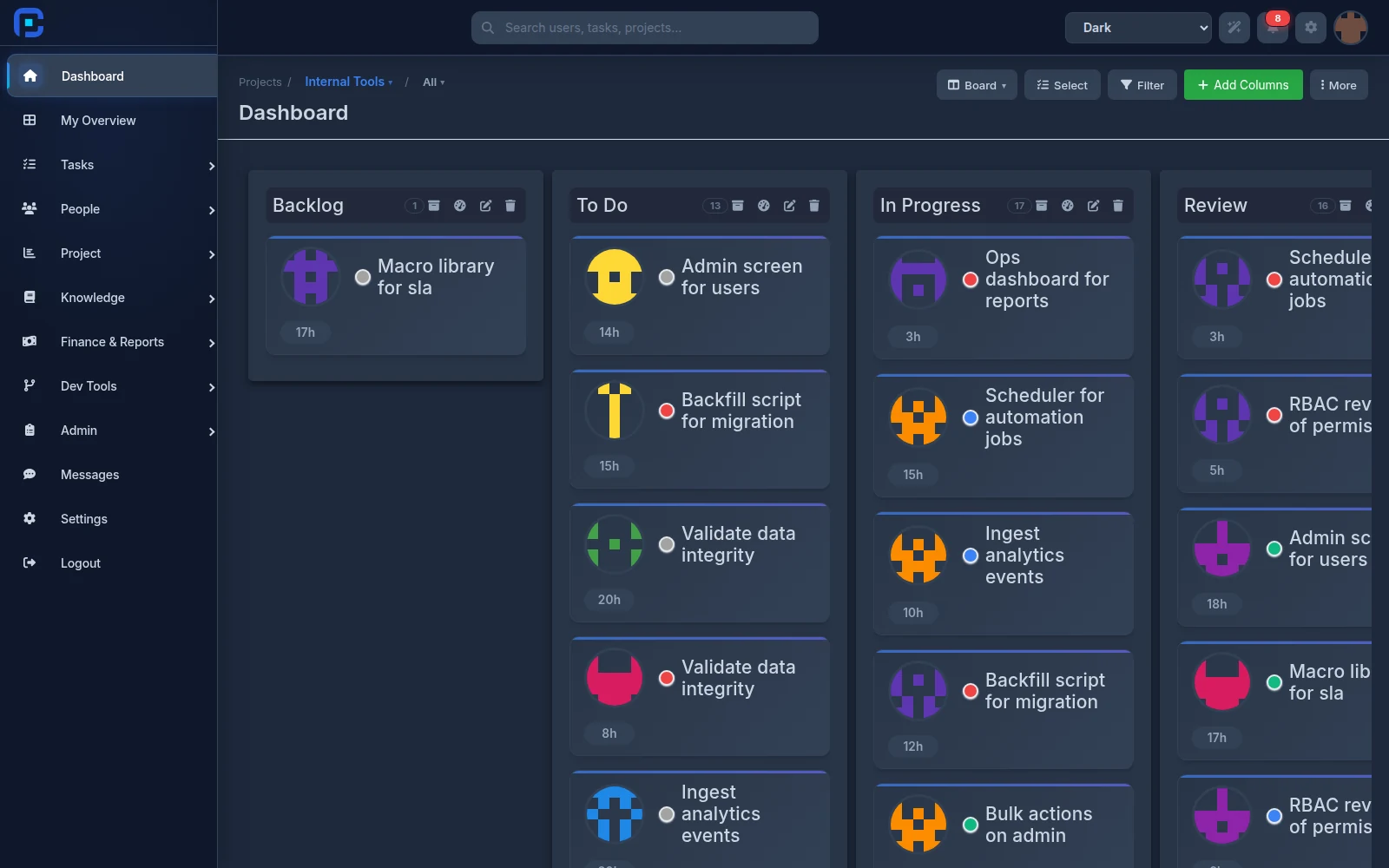
The consequences are familiar. Task status is always a day stale, because updating it is extra work that happens after the real work is done. Status meetings run on old data. And anyone who wants to know "where is task 442?" either asks in chat or opens the board themselves.
The Model Context Protocol (MCP) is an open standard that lets an AI assistant inside your editor reach external tools. Register WKFGo as an MCP server and the same assistant writing your code can create tasks, move them between columns, log time, and pull project reports — without you leaving the editor.
This guide gives exact, copy-pasteable configuration for six tools.
First: create a personal key
In WKFGo, go to Settings → Integrations → AI IDE Connection and create a key. It starts with wk_.
Three things worth knowing:
- Everyone uses their own key. Don't put one person's key in a shared team config — every action the assistant takes is recorded under the key owner's name, and you'll end up with a history that tells you nothing.
- The key carries your permissions, not more. Every MCP tool is checked against your own
feature_accesses. If the assistant gets "forbidden", the key isn't the problem — your access level on that project is. - Keep the key out of the repo. Add the MCP config file to
.gitignore, or read the key from an environment variable.
The server URL is the same in every example below:
https://wkfgo.ir/api/mcp

Configuration by tool
Claude Code
One command in the terminal:
claude mcp add --transport http wkfgo https://wkfgo.ir/api/mcp \
  --header "Authorization: Bearer wk_YOUR_KEY"
To configure it by hand instead, put this in the project's .mcp.json or in ~/.claude.json:
{
  "mcpServers": {
    "wkfgo": {
      "type": "http",
      "url": "https://wkfgo.ir/api/mcp",
      "headers": {
        "Authorization": "Bearer wk_YOUR_KEY"
      }
    }
  }
}
A .mcp.json at the repo root scopes the connection to that repository — usually what you want.
Cursor
In ~/.cursor/mcp.json:
{
  "mcpServers": {
    "wkfgo": {
      "url": "https://wkfgo.ir/api/mcp",
      "headers": {
        "Authorization": "Bearer wk_YOUR_KEY"
      }
    }
  }
}
Cursor also supports one-click install: the connection panel in WKFGo generates a cursor:// link that adds the config for you.
VS Code
In .vscode/mcp.json — note the outer key here is servers, not mcpServers:
{
  "servers": {
    "wkfgo": {
      "type": "http",
      "url": "https://wkfgo.ir/api/mcp",
      "headers": {
        "Authorization": "Bearer wk_YOUR_KEY"
      }
    }
  }
}
Windsurf
In ~/.codeium/windsurf/mcp_config.json — the URL key is serverUrl:
{
  "mcpServers": {
    "wkfgo": {
      "serverUrl": "https://wkfgo.ir/api/mcp",
      "headers": {
        "Authorization": "Bearer wk_YOUR_KEY"
      }
    }
  }
}
Gemini CLI
By command:
gemini mcp add --transport http wkfgo https://wkfgo.ir/api/mcp \
  --header "Authorization: Bearer wk_YOUR_KEY"
Or by hand in ~/.gemini/settings.json — the URL key is httpUrl:
{
  "mcpServers": {
    "wkfgo": {
      "httpUrl": "https://wkfgo.ir/api/mcp",
      "headers": {
        "Authorization": "Bearer wk_YOUR_KEY"
      }
    }
  }
}
OpenAI Codex
In ~/.codex/config.toml — this one is TOML, not JSON:
[mcp_servers.wkfgo]
url = "https://wkfgo.ir/api/mcp"
http_headers = { "Authorization" = "Bearer wk_YOUR_KEY" }
First test: read only
Before granting write access, make a read request:
"Show me my work queue with the
my_queuetool."
If the task list matches what you see on the board, the connection works. If you get a permission error, fix your access level on that project — don't route around it with an admin key, or the work history ends up attributed to the wrong person.
The detail that makes it usable: names instead of IDs
Most WKFGo MCP tools accept either a numeric ID or a name. You don't need to know that the project is ID 7:
"In the Portal Redesign project, create a task for the memory leak in the reporting service."
Exact name matches are tried first, then unique substrings. If several match, the tool returns the candidates and the assistant asks which one you meant. Small detail, but it's the difference between a tool you actually use and one you tried once.
The daily loop
Once configured, the working pattern looks like this:
1. Pull the context — get_context_pack returns the task's acceptance criteria, linked wiki pages, dependencies, and prior discussion in one call. Do this before writing the first line; most rework traces back to unread acceptance criteria.
2. Start the session — start_work opens a work session so time is tracked automatically.
3. Write the code. No MCP involvement here.
4. Link the commit to the task — put TASK-<id> in the commit message. The Git webhook attaches the commit to that task with no manual step. If one commit touches several tasks, list them all: TASK-12 TASK-34 fix shared auth bug.
5. Submit for review — submit_for_review moves the work into the human approval queue.
6. Close the session — end_work.
What's available
The WKFGo MCP server exposes roughly 120 tools. The ones developers reach for most:
my_queue— your work queue, triaged. Items a reviewer sent back come first, since they're usually the most urgent.get_context_pack— everything about one task in a single call.update_status— move a task between board columns. Column names match case-insensitively.log_timeandtime_summary— record hours and pull a time report.create_taskandadd_todo— create tasks and subtasks.ask_human— when a requirement is ambiguous, the assistant asks instead of guessing, and waits for an answer.
And for managers:
get_project_report— task counts, overdue items, per-assignee load.workload_heatmapandportfolio_overview— team load and cross-project views.finance_summary— revenue, expense, and net per project.
The full list with parameters is in the API and MCP documentation.
Common mistakes
A shared team key. Tempting, but it makes the work history meaningless and you can't revoke one person's access when they leave.
Granting write access on day one. Run read-only for a day or two and watch how the assistant behaves first.
Expecting the tool to replace the conversation. MCP removes the friction of status updates; deciding what to prioritize is still a human job.
Forgetting TASK-<id> in commit messages. Without it, code never links to the task and delivery reporting stays incomplete. If you keep forgetting, name your branches task/<id>-short-description instead.
FAQ
Does my key give access to the whole organization?
No. The key carries exactly the permissions your user account has, and no more. Every call is checked against feature_accesses.
What if my editor isn't listed here?
Any client that speaks MCP over HTTP works. Point it at https://wkfgo.ir/api/mcp with an Authorization: Bearer wk_… header.
Is my code sent anywhere?
The MCP server only exchanges project data — tasks, wiki, reports. Whether your code reaches a language model depends on your editor and model provider settings, not on WKFGo.
How many people can connect at once?
No limit. The server is stateless, so each request stands alone and concurrent connections don't interfere.
Summary
Setting up MCP is a five-minute job that removes a daily friction: updating status stops being extra work and becomes part of the same flow you're already coding in.
If you want to try it, start with one project and enable only the read tools first.